




Personal Cards
Manage personal cards in New Expensify
Expensify lets you view and manage your personal credit cards in one place, making it easier to track spending, submit reimbursable expenses, and stay organized for tax time.
If you previously connected a personal card in Expensify Classic, you can now manage that card directly in Expensify on both web and mobile.
Who can manage personal cards
You can manage personal cards if you have a personal credit card that was already connected to your account. You can manage these cards on both web and mobile, alongside any company cards on your account.
How to view personal cards in Wallet
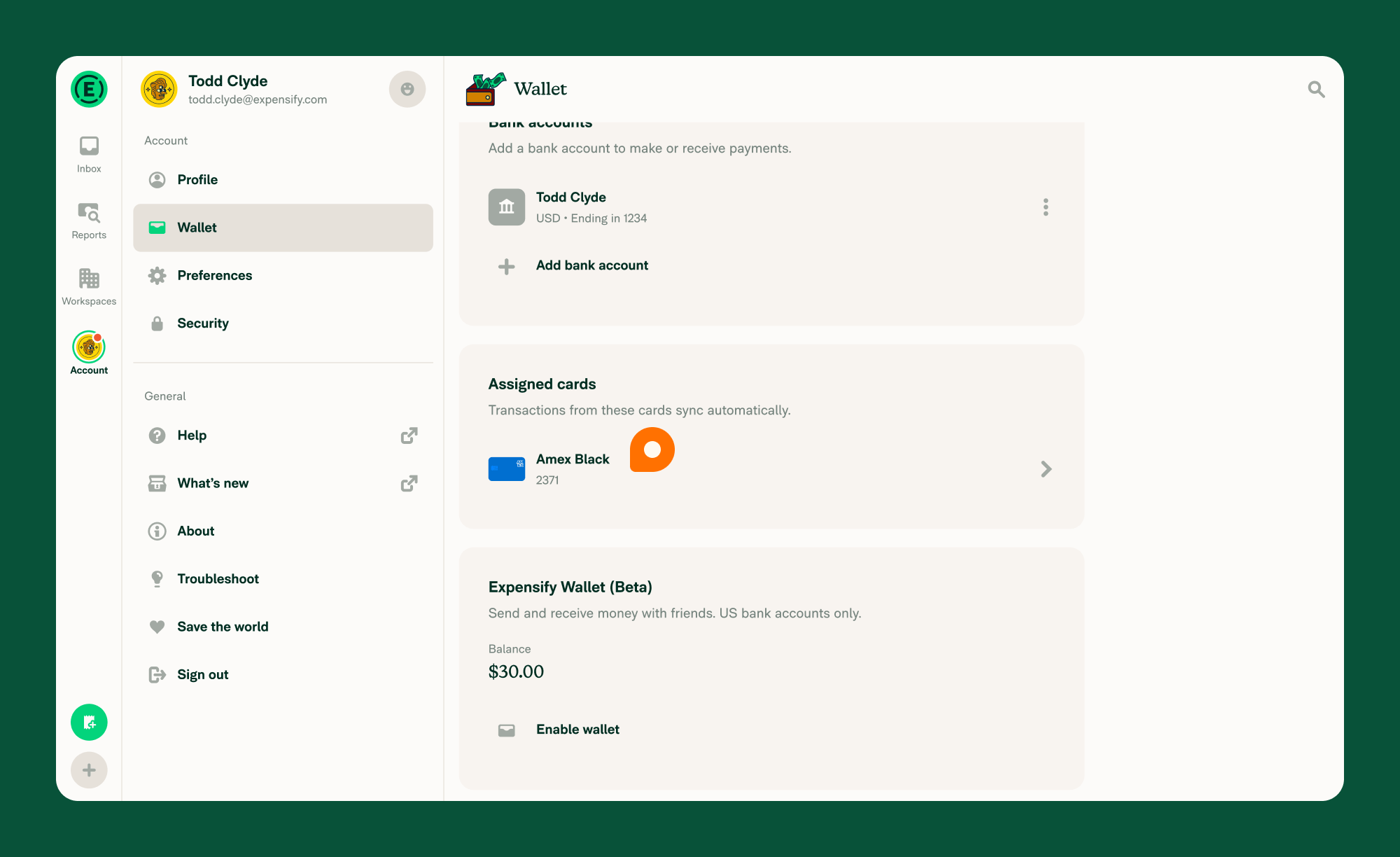
- Click the navigation tabs (on the left on web, on the bottom on mobile), then select Account > Wallet.
- Under Assigned cards:
- Personal cards imported from Expensify Classic will appear here.
- You’ll see the card name, bank icon, and last 4 digits.
- Tap the personal card you want to manage.
If you have both company and personal cards, you’ll see them separated into Company cards and Personal cards sections.
What you can do with personal cards
You can:
- View all personal cards imported from Expensify Classic
- Automatically import transactions from your linked personal cards
- Generate IRS-compliant eReceipts for eligible USD purchases
- Update personal card settings
- Fix broken card connections
- Filter expenses by card in the Expenses tab on the Reports page
How to update personal card settings
- Click the navigation tabs (on the left on web, on the bottom on mobile), then select Account > Wallet.
- Under Assigned cards, select a personal card.
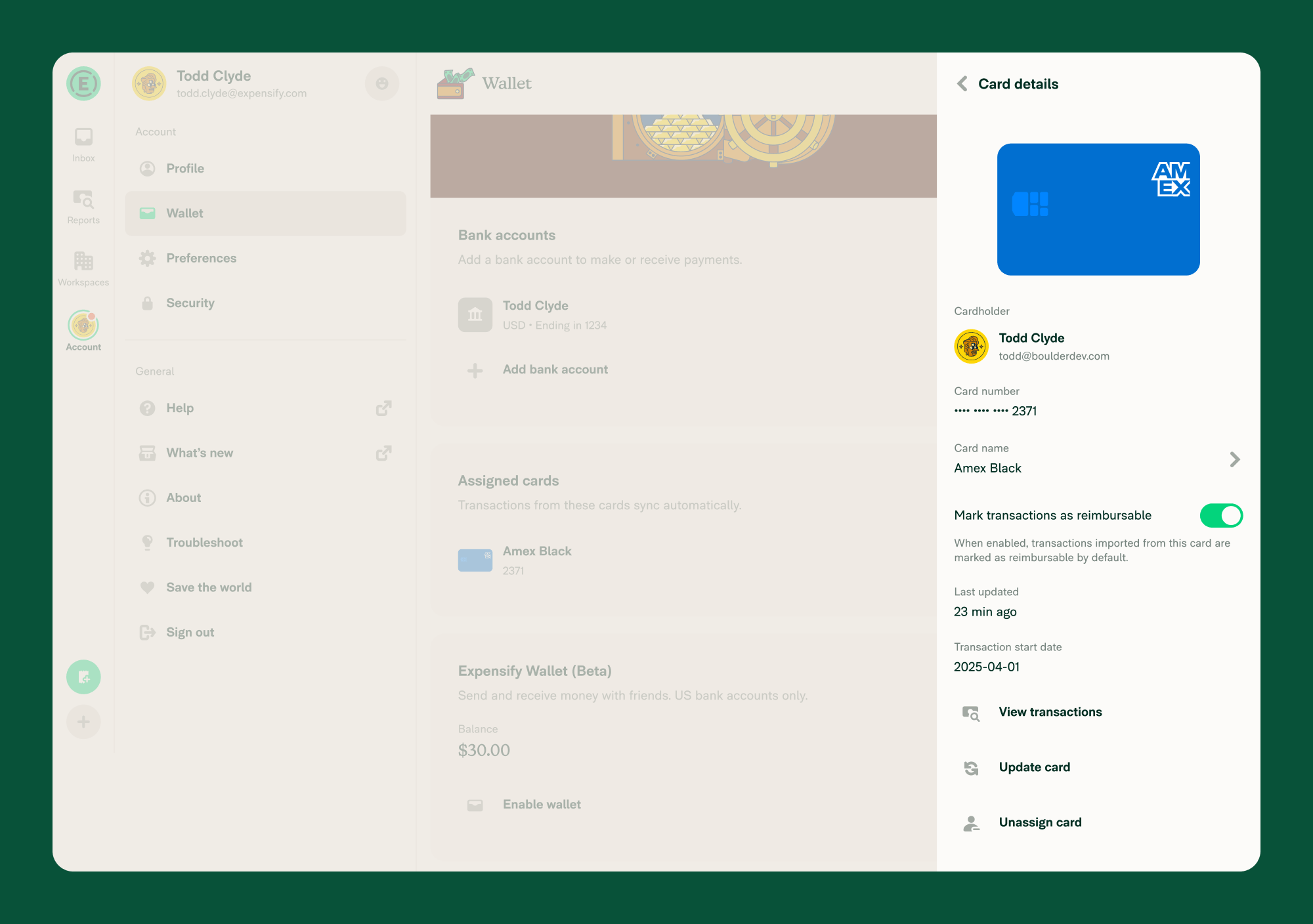
- On the Card details page, you can:
- Rename the card
- Update the card to pull in new transactions (if not CSV-imported)
- Unassign the card if it’s no longer needed
- Toggle Mark transactions as reimbursable
- The reimbursable setting applies only to new transactions and is turned on by default.
Note: Unassigning a personal card permanently deletes any unreported expenses or expenses on draft reports from that card.
Why a personal card connection can break
A personal card connection can break when your bank can no longer authenticate your account. Common causes include:
- Your bank login credentials changed (e.g., you updated your password).
- Your bank requires additional verification (e.g., multi-factor authentication expired).
- Your bank revoked access to the third-party connection.
- A temporary outage at your bank disrupted the connection.
When a connection breaks, Expensify can no longer import new transactions from that card.
How to know when a personal card connection is broken
When a personal card connection breaks, you’ll see:
- A notification in the Time Sensitive section on Home.
- A red dot indicator on Wallet in the navigation tabs.
- A red dot indicator on the card in Wallet leading to the error.
How to fix a broken personal card connection
- In the navigation tabs (on the left on web, on the bottom on mobile) navigate to Account > Wallet.
- Under Assigned cards, select the card with the broken connection.
- Choose Fix card.
- Log into your bank when prompted to re-authenticate the connection.
If logging into your bank doesn’t resolve the issue, tap Update card to attempt a manual refresh.
How the broken connection violation works
When you have a broken personal card connection, Expensify adds a broken connection violation to receipt-scanned cash expenses across all of your workspaces. This violation holds those expenses back in case they need to be merged with card transactions once the connection is fixed.
To resolve the violation, fix the broken card connection by following the steps above. The violation is automatically removed from affected expenses once the connection is restored.
You can tap the hyperlinked text in the violation to go directly to the Card details page in Wallet where you can fix the connection.
FAQ
Can I add another personal card?
Not yet. Only cards connected to your account in Expensify Classic are available to manage in New Expensify. Support for adding new personal cards will be available in a future update.
Can I change the reimbursable setting for past transactions?
No. Changes to the reimbursable setting only apply to transactions imported after the change.
Why don’t I see my personal card in the Wallet?
Personal cards appear in the Wallet only if they were previously connected to your account in Expensify Classic. If your card doesn’t show up, it means it wasn’t connected before and isn’t available to manage yet.
Why do I see a broken connection violation on my expenses?
When a personal card connection breaks, Expensify adds a broken connection violation to receipt-scanned cash expenses. This holds them back in case they need to merge with card transactions once the connection is restored. Fix the card connection to remove the violation automatically.
When is the broken connection error removed?
The broken connection error is automatically removed when any of the following occurs:
- Logging into your bank successfully re-authenticates the connection.
- Tapping Update card successfully refreshes the card.
- Expensify’s daily automatic card refresh succeeds.


